Arm Examples » CI/CD
Modern embedded software development requires automated workflows that ensure code quality, enable rapid iteration, and support collaborative development. CI/CD practices bring these capabilities to embedded systems, helping teams deliver reliable firmware faster while maintaining high quality standards.
MDK includes tools to establish comprehensive CI/CD workflows that include automated builds as well as unit testing and integration testing on simulation models or target hardware. Keil Studio is based on VS Code that integrates Git features and offers several VS Code extensions for static code analysis. The CMSIS-Toolbox is a command-line interface for building embedded applications, enabling seamless integration with popular CI/CD platforms (like GitHub Actions). Integration with static code analysis tools (e.g. MISRA checking) is achieved with standard database files that third-party tools can consume.

The underlying build system of Keil Studio uses the CMSIS-Toolbox and CMake. GitHub-hosted runners provide virtual machines for automated build and execution tests using simulation models, while self-hosted runners enable testing on actual target hardware. CI is streamlined with:
- Consistent tool installation based on a single
vcpkg-configuration.jsonfile for desktop and CI environments. - CMSIS solution files (
*.csolution.yml) that enable seamless builds in CI, for example using GitHub actions. - Run and Debug Configuration for pyOCD that uses a single configuration file
*.cbuild-run.yml.
The CMSIS-Toolbox enables reproducible builds across different environments using the csolution project files that define build configurations, dependencies, and target devices. Build automation ensures that every code change is validated consistently, catching integration issues early.
Badges with a label Build indicate GitHub actions that run build tests using the CMSIS-Toolbox.

Effective embedded development incorporates various testing strategies:
- Unit testing where code is tested primarily at function level using a test framework like Unity.
- Integration testing where multiple components are combined and interfaces between these components are verified.
- System testing where the complete system is tested against the requirements.
MDK supports unit testing and integration testing on target systems with:
- Arm Fixed Virtual Platforms (FVP) are simulation models to test without physical devices, accelerating feedback cycles.
- Hardware-in-the-Loop (HIL) Testing with debug adapters to execute tests on actual target hardware to verify real-world behavior.
CI pipelines may store build artifact files, reports, and may further automate firmware packaging, versioning, and deployment processes, ensuring traceability from source code to deployed binaries.
Arm FVPs are functionally accurate simulation models of Arm-based Cortex-M CPUs and Corstone-3xx subsystems. Virtual Interfaces in Arm FVPs implement various CPU peripherals that allow to use external resources for stimulating the firmware application. Several virtual interfaces connect to Python for flexible scripting in test automation.
Badges with a label Execution or Algorithm indicate GitHub actions that run tests on virtual hardware with FVP simulation models.


Hardware-in-the-Loop (HIL) testing is enabled with self-hosted GitHub runners that connect to Linux systems equipped with debug probes. Build artifacts (firmware images) are generated through automated build tests on GitHub-hosted runners, then deployed to self-hosted runners where pyOCD downloads the firmware to target hardware and executes the test suite.
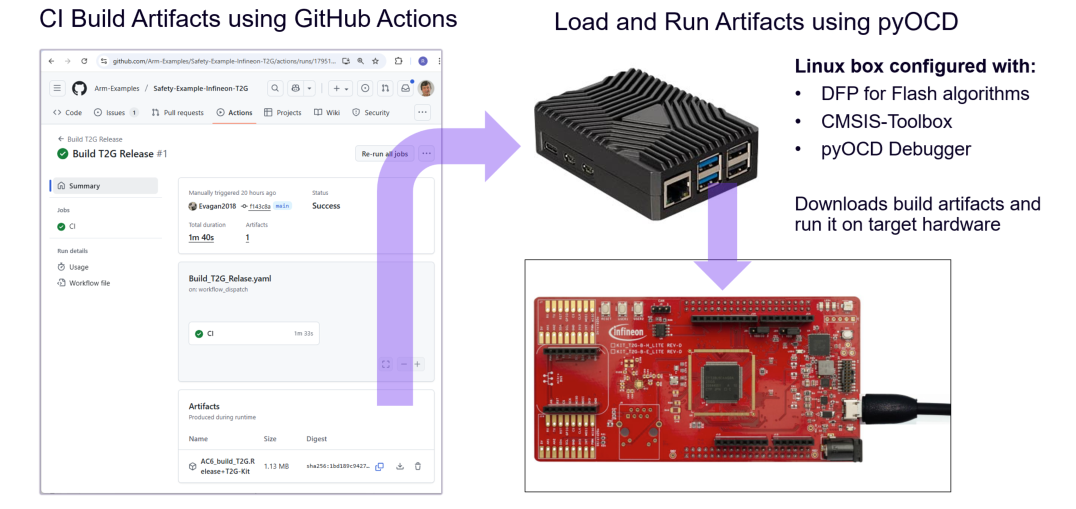
Badges with a label Run or HIL indicate GitHub actions that run tests on actual target hardware with self-hosted GitHub runners.


Raspberry Pi devices can serve as cost-effective self-hosted GitHub runners for HIL testing with embedded hardware. The setup involves installing Ubuntu Server, configuring the development toolchain, and registering the device as a GitHub Actions runner.
- Raspberry Pi 3 or newer (Arm64 architecture).
- microSD card (minimum 16 GB).
- Network connection (LAN or Wi-Fi).
- Debug probe (e.g. ULINKplus or ST-LINK) for target hardware connection.
The setup requires four steps:
- Create microSD card image for Raspberry Pi
- Configure network access
- Install development tools
- Setup GitHub runner
- Use Raspberry Pi Imager to install Ubuntu Server 24.04 LTS (64-bit).
- Configure hostname (e.g.,
rpi-ci), user credentials, SSH access, and network settings during the imaging process. See Ubuntu installation guide for Raspberry Pi.
Configure your network access and establish SSH connection for remote management.
# Determine the Raspberry Pi's MAC address (useful for network registration)
ip link show eth0 | grep ether

# Determine the assigned IP address
ip addr show eth0 | grep inet
If your organization requires device registration (e.g., MAC address whitelisting), register the Raspberry Pi's MAC address with your network administrator before proceeding.
Connect via SSH from your PC:
# Replace <ip-address> with your Raspberry Pi's IP address
ssh <username>@<ip-address>

# Example:
# ssh devuser@192.168.1.100You'll need the following tools:
- CMSIS-Toolbox for building embedded projects
- pyOCD for debug probe support
- Required packs (e.g.,
Keil::STM32H5xx_DFP) usingcpackget
Also, you need to configure the following:
- Configure environment variables (
CMSIS_TOOLBOX_ROOT,CMSIS_PACK_ROOT) in.bashrc - Configure USB access with the udev rules for pyOCD to enable
non-root access to debug probes. Add user to
plugdevgroup.
Copy and paste the following commands to setup CMSIS-Toolbox, pyOCD, and required packs. Adapt the versions and DFP pack as required for your application.
# Install build tools
sudo apt update
sudo apt upgrade
sudo apt install cmake ninja-build unzip -y

# Download and extract CMSIS-Toolbox
wget https://artifacts.tools.arm.com/cmsis-toolbox/2.12.0/cmsis-toolbox-linux-arm64.tar.gz
tar -xf cmsis-toolbox-linux-arm64.tar.gz

# Download and extract pyOCD
wget https://github.com/pyocd/pyOCD/releases/download/v0.42.0/pyocd-linux-arm64-0.42.0.zip
mkdir pyocd && cd pyocd
unzip ./../pyocd-linux-arm64-0.42.0.zip
cd ..

# Set up environment variables (persist across reboots)
echo 'export PATH="$HOME/pyocd:$PATH"' >> ~/.bashrc
echo 'export PATH="$HOME/cmsis-toolbox-linux-arm64/bin:$PATH"' >> ~/.bashrc
echo 'export CMSIS_PACK_ROOT="$HOME/packs"' >> ~/.bashrc
source ~/.bashrc

# Install udev rules for Debug Adapter (enables non-root USB access)
sudo wget https://raw.githubusercontent.com/pyocd/pyOCD/main/udev/49-stlinkv3.rules -O /etc/udev/rules.d/49-stlinkv3.rules
sudo udevadm control --reload-rules
sudo udevadm trigger

# Add user to plugdev group
sudo usermod -aG plugdev $USER

# Verify installation
pyocd --version
cpackget --version

# Initialize pack repository and install STM32H5xx DFP
cpackget init https://www.keil.com/pack/index.pidx
cpackget add Keil::STM32H5xx_DFP@2.1.1 -aFollow GitHub's self-hosted runner setup
for Linux Arm64. Download the runner package, configure it with your repository URL and token, then start the runner
service with ./run.sh.
To add a self-hosted runner:
- Navigate to your GitHub repository Settings → Actions → Runners
- Click New self-hosted runner
- Select Linux and ARM64 architecture
- Follow the instructions provided by GitHub (the commands will include a unique authentication token for your repository)
Copy and paste the following commands to download and configure the GitHub runner:
# Create a folder for the runner
mkdir actions-runner && cd actions-runner

# Download the latest runner package (check GitHub for current version)
curl -o actions-runner-linux-arm64-2.331.0.tar.gz -L https://github.com/actions/runner/releases/download/v2.331.0/actions-runner-linux-arm64-2.331.0.tar.gz

# Optional: Validate the hash (compare with the hash shown on GitHub)
echo "f5863a211241436186723159a111f352f25d5d22711639761ea24c98caef1a9a  actions-runner-linux-arm64-2.331.0.tar.gz" | shasum -a 256 -c

# Extract the installer
tar xzf ./actions-runner-linux-arm64-2.331.0.tar.gz

# Configure the runner (replace with your repository URL and token from GitHub)
./config.sh --url https://github.com/<your-org>/<your-repo> --token <YOUR_TOKEN>

# Start the runner
./run.sh
Once started, the runner will listen for jobs. When you trigger a workflow in your repository that uses
runs-on: self-hosted, the Raspberry Pi will execute the job.