I love Xmonad so much, I hope you will too!
Press ALT + SHIFT + ENTER.
Type exit to close.
Use ARROW UP/DOWN to navigate previously executed commands.
Use TAB to autocomplete folder and files.
Xmonad is the windowing system. No more bloat. It's heavily customized, but the basics work as usual.
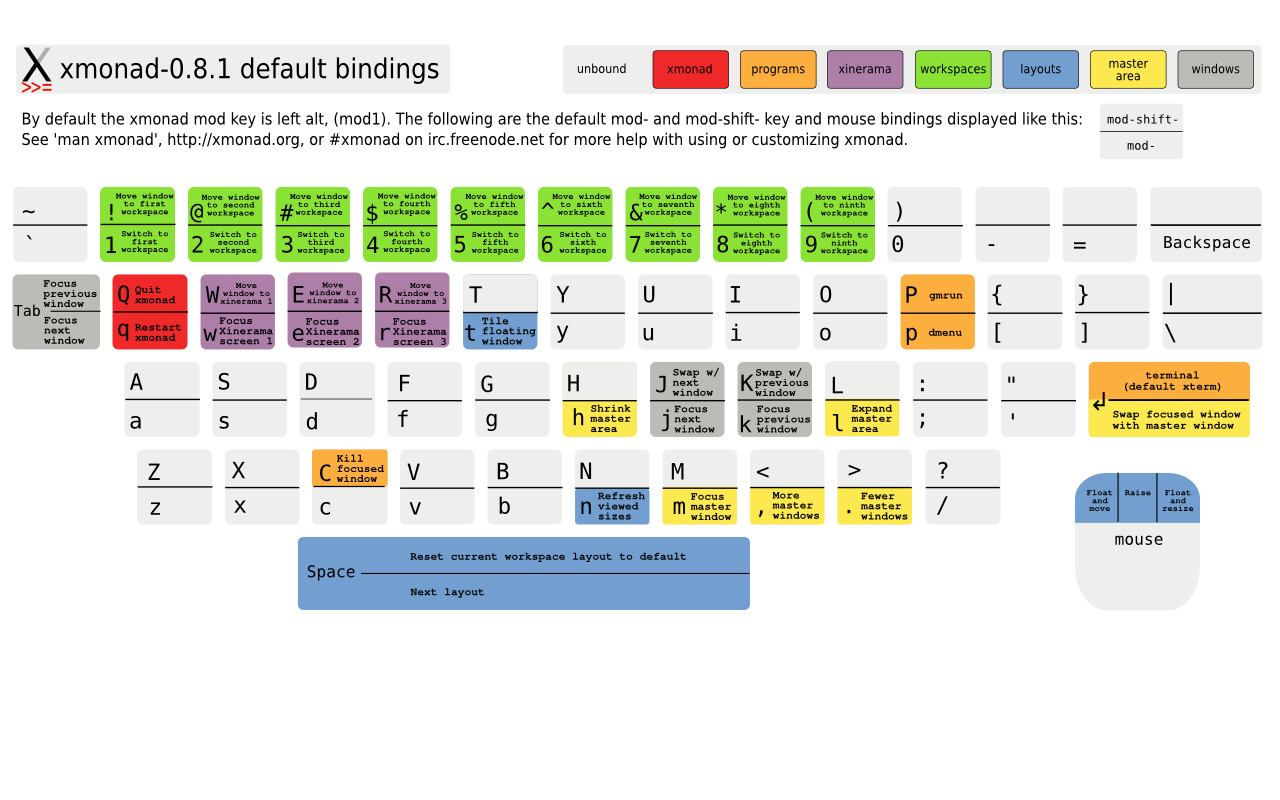
Switch between workspaces: ALT + 0-9
Kill a Program: ALT + SHIFT + C
Key combinations can be found here.
Xmobar is the status bar at the top. To customize it use
vi .config/.xmobarrcTo update changes you need to recompile & restart xmonad.
Type chrome into the terminal.
Vi is the default, minimalistic file editor. Read all about it here
Additional Clipboard: Select text to copy and use middle mouse button to paste
Normal Clipboard: Ctrl C to copy, Ctrl V to paste, Ctrl X to cut
Do this regularly!
sudo apt-get update
sudo apt-get upgrade
sudo apt-get dist-upgrade  # might not always be necessary
sudo apt-get autoremoverr # check if reboot is required
sudo shutdown -h now
sudo reboot -h nowsudp apt-get install PACKAGEFind the apt-get install package online, let’s take vlc as an example.
sudo apt-get install vlcOpen .bash_aliases (dot files are hidden) with
vi .bash_aliasesAnd press i for edit mode Add a new line
alias vlc='vlc &> /dev/null &'This will make sure that when we spawn vlc from the terminal it is started as a new process and error messages are not dumped to our terminal.
Press escape to exit edit mode and save and close the file with :wq
Now type close and re-open the terminal. Type vlc to run vlc on the computer
sudo apt-get purge PACKAGE --auto-removesudo passwd USERNAMEimport screenshot.pngThis will allow you to select an area to screenshot and save it as screenshot.png in the current terminal working directory.
If you need to take a delayed screenshot you can use
sleep 3; import screenshot.png- List Files and Dirs:
ls - List Files and Dirs including hidden:
ls -al - List Hierarchy (two levels):
tree -L 2 - Remove File:
rm [FILENAMe] - Remove Empty Directory:
rmdir [DIRNAME] - Remove Any Directory:
rm -rf [DIRNAME]
tar -zxvf FILENAMEYou might have edited some files that prevent you from logging in. In this case you can press CTRL + ALT + F3. Nothing will change on the screen, however when you login now the startup scripts are not run.