Query Builder can be used to create queries via a Query Block, Query Pages, or the Query Drawer.
These queries are far more powerful than vanilla Roam queries, as it taps into Roam's underlying query language surfaced through an approachable UI.

The above UI is available as a block component. This allows you to create several on a page, wherever on the page you want.
To create one, simply add {{query block}} to any block on the page or use the Create Query Block from the Roam Command Palette.
With Query Pages, you designate certain pages in your Roam graph as "views" into your data.
On the Roam Depot Settings page for Query Builder, you should see a setting called Query Pages. You could use this to denote which page titles in your Roam Graph will be used to create query pages. Use the * as a wildcard.
By default, Query Pages is set to be titled with queries/*. This means any page in your graph prefixed with queries/ can be used to save a query. You can denote multiple page title formats.
Example: [[queries/Demo]]
The above UI is also available as a left hand drawer, accessible from the command palette. This allows you to execute a query no matter where in your graph you are.
To open, enter Open Query Drawer from the Roam Command Palette.
Create a Query Block, navigate to a Query Page, or open the Query Drawer to begin to building your query. You can use this editor to create and save a query.
There are two important parts to a query: Conditions and Selections.
After specifying conditions and selections, hit the Query button to return results in your graph. These results will always include a text field which will link to the relevant block or page reference. Hitting Query also effectively "Saves" the query to the graph.
The results returned will be organized in a table with sortable and filterable columns. Click on the columns to sort the data and use the filter icon to narrow down the table to your desired results:
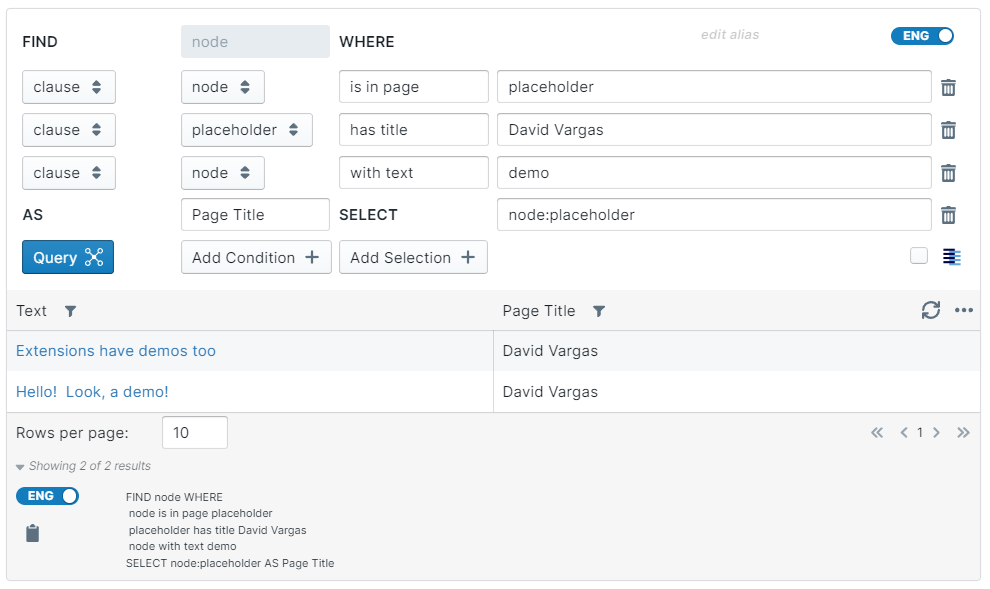
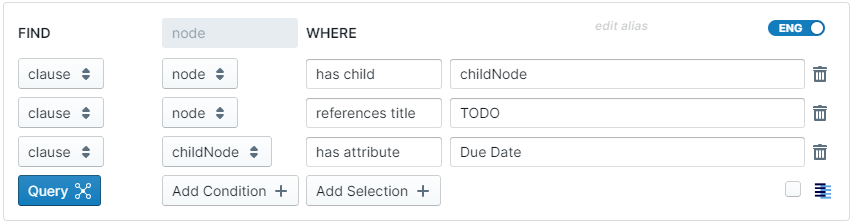
Conditions specify which blocks you want to return. They determine the rows of the table. The anatomy of a Condition is a triple: source, relationship, & target:

You can use a combination of multiple conditions to select the data you want.
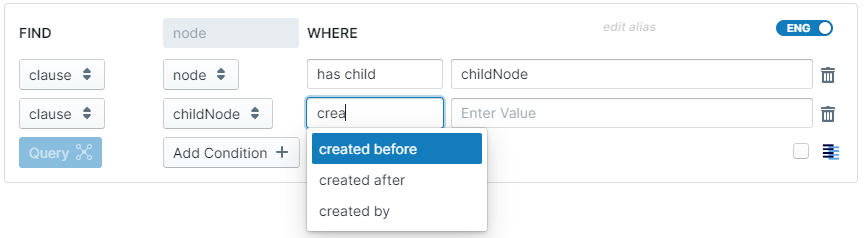
relationships will autocomplete as you type:
| Relationship | Description | Example |
|---|---|---|
created after |
The source block or page was created after the naturally specified target. |
Link |
created before |
The source block or page was created before the naturally specified target. |
Link |
created by |
The source block or page was created by the user with a display name of target. |
Link |
edited after |
The source block or page was edited after the naturally specified target. |
Link |
edited before |
The source block or page was edited before the naturally specified target. |
Link |
edited by |
The source block or page was last edited by the user with a display name of target. |
Link |
has ancestor |
The source block has the target block or page as an ancestor up the outliner tree. |
Link |
has attribute |
The source block or page has an attribute with value target. |
Link |
has child |
The source block or page has the target block as a child. |
Link |
has descendant |
The source block or page has the target block as a descendant somewhere down the outliner tree. |
Link |
has title |
The source page has the exact text target as a title. Supports date NLP. The target also supports Regular Expressions. |
Link |
is in page |
The source block is in the target page. |
Link |
is in page with title |
The source block is in a page with title target. Supports date NLP. The target also supports Regular Expressions. |
Link |
is referenced by |
The source block or page is referenced by the target block or page. |
Link |
references |
The source block or page references the target block or page. |
Link |
references title |
The source block or page references a page with target as the title. Supports date NLP. The target also supports Regular Expressions. |
Link |
titled after |
The source page is a DNP that is after the naturally specified target. |
Link |
titled before |
The source page is a DNP that is before the naturally specified target. |
Link |
with text |
The source block or page has the exact text target somewhere in its block text or page title. |
Link |
with text in title |
The source page has the exact text target somewhere in its page title. |
Link |
Some relationships have a target field that supports the following options:
{date}- matches any Daily Note Page{date:today}- matches the current date{current}- matches the page currently open in the main window{this page}- matches the page in which the query is run{current user}- matches the current user
Query Builder supports advanced logical operators that allow you to create complex queries with multiple branches. These operators enable you to build sophisticated queries that can handle multiple scenarios or exclude specific conditions.
OR Operator: Returns results that match any of the specified branches. Think of it as "this OR that OR the other thing."
NOT OR Operator: Returns results that do not match any of the specified branches. Think of it as "not this AND not that AND not the other thing."
- Add a new condition to your query
- Change the condition type from the dropdown menu (default is "clause")
- Select "or" or "not or" from the options
- Click "Edit" to manage the branches

When you create an OR or NOT OR condition, you'll see a tabbed interface that allows you to manage multiple branches:
- Each tab represents a branch (numbered 1, 2, 3, etc.)
- Each branch contains AND conditions - all conditions within a branch must be true
- Branches are combined with OR logic - any branch being true will return results
- Use "Add Branch" to create additional branches
- Use "Add Condition" to add more conditions within the current branch
- Click on tabs to switch between branches
- Use left/right arrow keys to navigate between branches
- Use "Add Branch" button to create new branches
- Use "Back" button to return to the main query view
Example 1: OR Query - Finding Tasks by Multiple Statuses
Goal: Find all tasks that are either "In Progress" OR "Pending Review"
- Create a new condition
- Change type to "or"
- Click "Edit"
- In Branch 1: Add condition
nodehas attributeIn Progress - Click "Add Branch"
- In Branch 2: Add condition
nodehas attributePending Review
Returns all blocks that have either "In Progress" or "Pending Review" as attributes.
Example 2: NOT OR Query - Excluding Multiple Categories
Goal: Find all notes that are NOT about "Work" AND NOT about "Personal"
- Create a new condition
- Change type to "not or"
- Click "Edit"
- In Branch 1: Add condition
nodehas attributeWork - Click "Add Branch"
- In Branch 2: Add condition
nodehas attributePersonal
Returns all blocks that do NOT have "Work" as an attribute AND do NOT have "Personal" as an attribute.
Selections specify what data from the blocks that match your conditions get returned. They determine the columns of the table. By default, the block text or page title is always returned and hyperlinked. Every selection is made up of two parts: the label and the data:

The label, which gets specified after AS, denotes the name of the column that gets used. The data, which gets specified after Select, denotes what kind of data to return.
Metadata
| Data | Description | Example |
|---|---|---|
Author |
The user who created the block or page | Link |
Created Date |
The date the block or page was created | Link |
Created Time |
Same as above, but in hh:mm format |
Link |
Edited Date |
The date the block or page was edited | Link |
Edited Time |
Same as above, but in hh:mm format |
Link |
Last Edited By |
The user who created the block or page | Link |
Additional Data Types
| Data | Description | Example |
|---|---|---|
{attribute} |
Returns the value of an {attribute} associated with the queried results. |
Link |
node:{node} |
Returns any intermediary node you defined in one of the conditions. | Link |
node:{node}:{data} |
Specify one of the metadata {data} options or an {attribute} to return for an intermediary node. |
Link |
node:{node}:/regular_expression/ |
Returns a match according to a regular expression between /'s. |
Link |
node |
Use the label to edit the column header of the first column | Link |
add({label1}, {label2}) |
Add the values of two columns. Supports adding values to dates. | Link |
subtract({label1}, {label2}) |
Subtract the values betweenn two columns. Supports adding values to dates. | Link |
After you fire a query, the results will output in a table view. There are multiple ways to post process these results after they output to the screen.
Clicking on the table header for a given column will trigger an alphabetical sort. Clicking again will toggle descending order. Clicking once more will toggle the sort off. You could have multiple columns selected for sorting:

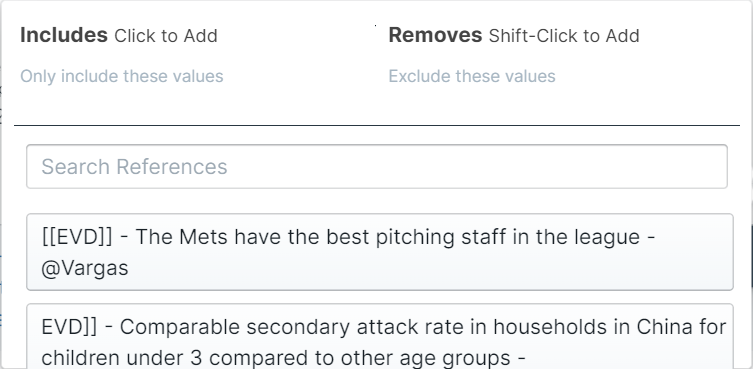
Each column is also filterable. The filter works just like the page and reference filters in native Roam, where you could pick values to include and remove:
Enable search by clicking on the Menu button, then Search.
This will allow you to search across all columns, case-insensitive.
Query.Builder.Search.-.Short.Demo.mp4
Each column also has a view type. Choosing a view type will change how the cell is displayed in the table.
The supported view types are:
| View Type | Description |
|---|---|
plain |
Outputted as plain text |
link |
Outputted as text that links to the block or page |
embed |
Embeds the contents of the block or page in the cell. |
All changes to the outputted results are saved automatically.
By default, the query builder will use the Table layout. You can switch to a different layout by hitting the more menu on the top right of the results and clicking on the Layout option.
The following layouts are available:
| Layout | Description | Example |
|---|---|---|
Line |
Displays your data as a line chart. | Link |
Bar |
Displays your data as a bar chart. | Link |
Timeline |
Displays your data as an interactive timeline view. | Link |
Kanban |
Displays your data as a Kanban board. | Link |
Next to the save button is a button that will allow you to export your results. There are currently two formats available to export to:
- CSV - All the columns in the table will become columns in the CSV
- Markdown - The columns will become frontmatter data and the children of the block or page will become markdown content.
Every Query Block or Query Page is rooted with a div that has an id of roamjs-query-page-${uid} where uid is the block reference of the query block or the page reference of the page. You could use this id to style individual queries with affecting other ones.
This extension comes with its own SmartBlocks command! The <%QUERYBUILDER%> command will run an existing Query Block or Query Page instance in your graph and return the results as separate blocks. The command takes in multiple arguments:
- Query reference - the block reference or alias of query
- Output format - the format to output each result in.
And two optional arguments (the order of these arguments does not matter):
- Limit - the number of results returned.
- Input Variables - variables to pass into the query
You can set the alias of a Query Block in the top right corner of the UI. See example 2 below.

The end of the title of a Query Page works as well. See example 3 below.

- Placeholders - you can use SmartBlock Formatting placeholders, like
{text}to insert the value from the result in. - Selections - there's a placeholder available for each Selection label that you have defined in the query.
- Selection
uid- to get theuidof a selection, append-uidto the end of the selection label, eg{someSelection-uid}. - SmartBlock Commands - any SmartBlock Command will be applied to the resulting output. See example 3 below.
The flexible output format allows you to define a multi-block output format.
To use the flexible output format, you pass in the block reference that contains the output format. Each result from the <%QUERYBUILDER%> command will be output with this format.
The same placeholders defined above for the regular output format are also available in the flexible output format, but you use <%GET:placeholder%> to get the value of a placeholder instead of {placeholder}.
Example
<%QUERYBUILDER:myQuery,((ITe51brrn))%>
Where ((ITe51brrn)) looks like this:
- Title:: <%GET:text%>
  - Description:: <%GET:description%>
Input Variables are a way to pass in values into your query, allowing for dynamic adjustments based on things like user input. This feature is particularly useful in scenarios where you want to reuse a single query template with different parameters.
For example, in a task management setup, you might have a query that retrieves tasks for a specific client. Instead of creating multiple query instances for each client, you can create one query and use an input variable to specify the client name dynamically.
To pass a value to the query builder instance, use this format: variable=value. See example 4 below.
Then in the query builder instance, you can reference it by entering :in variable in supported conditions.
Here is an example of this in action:
<%QUERYBUILDER:6-qLCJsSb,{text}%><%QUERYBUILDER:myQuery,The Result is {text} - {description}%><%QUERYBUILDER:queries/myQueryBlock,Random Block from {text}: <%RANDOMBLOCKFROM:{uid}%>%><SET:clientName,<%INPUT:Which client?,Alice,Bob,Eve%>%><%QUERYBUILDER:tasks,(({uid})),client=clientName%>
For developers of other extensions who want to use the queries defined by users, we expose the following API, available on the global window.roamjs.extension.queryBuilder object:
listActiveQueries-() => { uid: string }[]Returns an array of blocks or pages where the user has a query defined from query builder.runQuery-(uid: string) => Promise<Result[]>Runs the query defined at the inputuidand returns a promise that resolves to the array of results from the user's graphs.Results have the following schema:text-stringThe page title or block text of the primary node involved in the result.uid-stringThe reference of the primary node involved in the result.${string}-uid-stringIf the users define selections that return intermediary nodes, the reference of those nodes will always end in-uidand will always be of typestring.{string}-string | number | DateAll other fields returned in the result can be any of the primitive value types.
isDiscourseNode-(uid: string) => booleanReturns whether the inputuidis a discourse node.
See more query examples here: Link
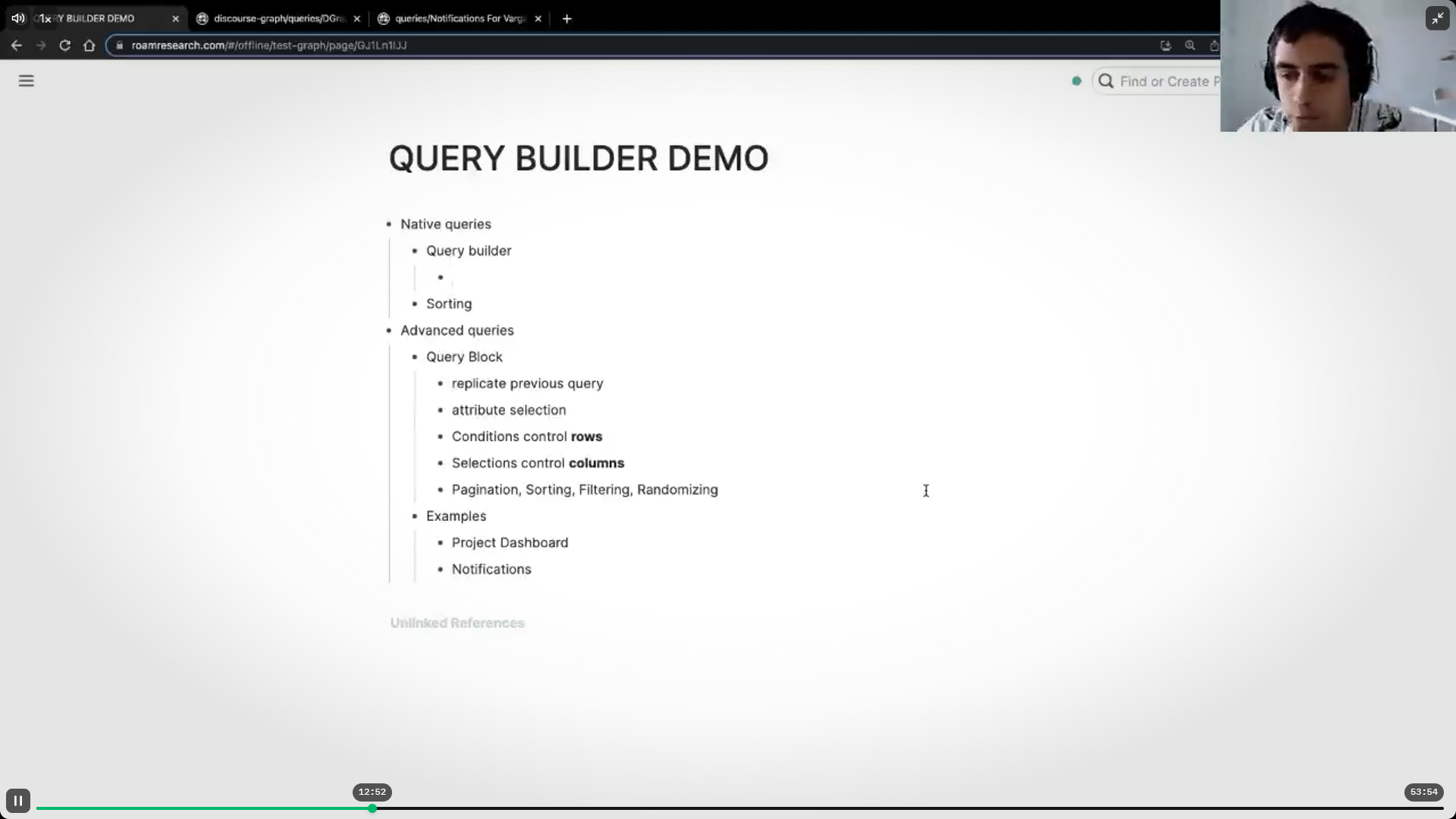
Demo showing Query Block, Query Pages, Query Drawer, Conditions, Selections and a few example queries.
About Roam Depot, extensions, and a Query Builder demo. Demo starts around 13 minutes.
(in the demo you'll see the block being used, but that can be interchanged with node)