


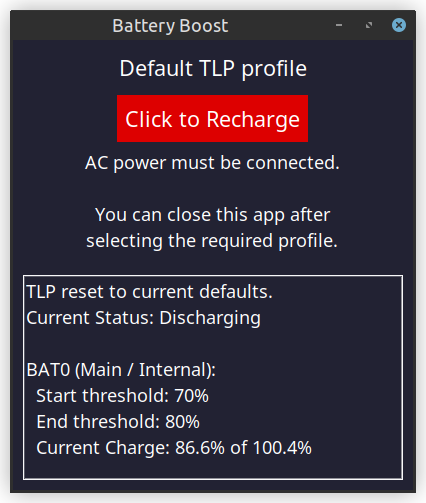
A lightweight Tkinter GUI to toggle TLP’s battery-care charging thresholds, allowing quick switching between
configured battery-health limits and a temporary full-charge override (tlp fullcharge).
The user manual is available online at https://stevedaulton.github.io/tlp-battery-boost/
TLP Battery Boost simplifies TLP's battery-care workflow. It is particularly convenient for users who prefer to preserve battery health but occasionally need a full charge.
It provides a simple GUI to:
- View the laptop’s battery thresholds and charge status.
- Temporarily override charge thresholds using Full Charge (
tlp fullcharge). - Revert to normal battery-care behaviour with a single click.
- Toggle Charging Behaviour: Switch between configured battery-care thresholds and full-charge override.
- Automatic Authentication: Enter your password once - the app maintains sudo privileges while running.
- Battery Status Display: View current charge levels and threshold settings.
- Theme Support: Choose between light and dark themes.
- Adjustable Font Sizes: Scale the interface to your preference.
- Terminal Integration: When launched from a terminal, status messages are also printed to stdout.
- Linux with TLP installed and configured
- Python 3.10+
- Tkinter (
python3-tk) - sudo privileges for TLP commands
Ensure TLP and Tkinter are installed on your system:
sudo apt install tlp tlp-rdw python3-tk  # For Debian/Ubuntu
# or
sudo dnf install tlp tlp-rdw python3-tkinter  # For Fedora
Installing with pipx (Recommended)
pipx install tlp-battery-boostOptional Desktop Integration
If you’d like Battery Boost to appear in your system’s application menu or on your desktop:
- Most Linux desktop environments (such as GNOME, KDE, XFCE) allow you to add a custom launcher manually.
- Set the command to
battery_boostand (optionally) include options such asbattery_boost -t dark -f 2.
Example .desktop File
[Desktop Entry]
Name=Battery Boost
Exec=battery_boost
Icon=/usr/share/pixmaps/BatteryBoost.png
Type=Application
Categories=Utility;HardwareSettings;
Comment=Toggle TLP fullcharge mode
Terminal=false
To launch the graphical interface:
battery_boostWhen launched the app will:
- Prompt for your sudo password.
- Initialise TLP to default settings.
- Show the current battery status.
- Provide a button to toggle between battery-care thresholds and full-charge override.
You can view the full command-line options by running:
battery_boost --helpExample output:
battery_boost --help
usage: battery_boost [-h] [-v] [-f {1-5}] [-t {light,dark}]

A simple GUI to enable `tlp fullcharge`.

options:
  -h, --help            show this help message and exit
  -v, --version         show program's version number and exit
  -f {1-5}, --font-size {1-5}
                        Font size [1-5] (1=smallest, 5=largest) (default: 3)
  -t {light,dark}, --theme {light,dark}
                        Color theme (default: light)
Notes:
-fsets the font size (1=smallest, 5=largest; default=3).-tsets the colour theme (light or dark; default=light).-vprints the program version.-hshows this help message and exits.
Large font with dark theme
battery_boost -f 5 -t dark
Small font for compact displays
battery_boost --font-size 1
- Battery-Care Mode: Uses TLP’s configured battery-preservation charge thresholds. For example:
- Start threshold = 70%: The laptop will only start charging when the battery is below 70%.
- End threshold = 80%: The laptop will stop charging when the battery reaches the 80% limit.
- Full Charge Mode: Temporarily disables charge limits to charge the battery to 100%.
- Authentication: Caches sudo credentials to avoid repeated password prompts.
- Status Monitoring: Uses
tlp-stat -bto display current battery thresholds and charge levels.
Note: After the laptop is rebooted, TLP returns to its normal threshold-controlled behaviour.
For more information about TLP, see https://linrunner.de/tlp/.
Authentication is managed by sudo, and the temporary variable holding the password is cleared
(reference removed) immediately after authentication.
- Your password is only used for initial sudo authentication.
- Your password is never logged, transmitted, or written to disk.
sudoprivileges are revoked on exit usingsudo --remove-timestamp.- No network connections are made - everything runs locally.
Tkinter not available / ImportError: No module named 'tkinter':
- Make sure Tkinter is installed (see the Installation section above).
- On Linux, this usually requires the system package
python3-tk(Debian/Ubuntu) orpython3-tkinter(Fedora).
TLP not found error:
- Ensure TLP is installed and in your PATH.
- Verify TLP is properly configured for your system.
# Verify TLP works as expected:
sudo tlp-stat -b
# Try starting tlp manually:
sudo tlp start
Authentication issues:
- Make sure you have sudo privileges.
- Check that your password is correct.
Battery status not showing:
- Verify your system's battery is detected by TLP.
- Check that
sudo tlp-stat -bworks from the command line.
Contributions are welcome! Please feel free to submit pull requests or open issues for bugs and feature requests.
Licensed under the GNU General Public License v3.0.
Note: This application requires TLP to be properly configured for your specific hardware. Some battery conservation features may not be available on all systems.