



Powerful, real-time OSINT suite for tracking every activity on Instagram - from story updates and bio changes to follower shifts, providing stunning dashboards and instant alerts to keep you in the loop.
pip install instagram_monitor

- Profile Activity: Monitor new posts, reels and stories in real-time.
- Audience Insights: Track changes in followings and followers.
- Visual Changes: Detect updates to profile pictures and visibility (public/private).
- Bio Updates: Stay informed about changes to user bio.
- Anonymous Stories: Download story images and videos without leaving traces.
- High-Quality Media: Save post images, reel videos and profile pictures.
- Batch Support: Monitor and download media for multiple users simultaneously.
- Terminal Dashboard: Beautiful, live-updating CLI interface with real-time stats.
- Web Dashboard: Modern, local web UI with activity feeds and remote controls.
- Image Support: View profile pictures and media directly in your terminal (via
imgcat).
- Multi-Channel: Instant alerts via Email and Webhooks (Discord etc.).
- Rich Alerts: Attached media (profile pics, stories, posts) directly in notifications.
- Error Reporting: Be notified if the monitoring process hits a snag.
- Be Human Mode: Simulates random user actions to blend in.
- Jitter Mode: Adds human-like delays to HTTP requests.
- Hour-Range Checking: Limits activity to specific hours of the day.
- Account Flexibility: Works with or without a logged-in Instagram account.
- CSV Logging: Log all activities and profile changes with timestamps.
- Flexible Config: Support for files, dotenv and environment variables.
- Follower Churn: Detailed tracking of exactly who followed or unfollowed.
- Remote Control: Manage tracking features via signals or the web UI.

- Requirements
- Installation
- Quick Start
- Configuration
- View Modes
- Usage
- How to Prevent Getting Challenged and Account Suspension
- Troubleshooting
- Change Log
- License
- Python 3.9 or higher
- Libraries: instaloader,
requests,python-dateutil,pytz,tzlocal,python-dotenv,tqdm,rich(for Terminal Dashboard),flask(for Web Dashboard)
Tested on:
- macOS: Ventura, Sonoma, Sequoia, Tahoe
- Linux: Raspberry Pi OS (Bullseye, Bookworm, Trixie), Ubuntu 24/25, Rocky Linux 8.x/9.x, Kali Linux 2024/2025
- Windows: 10, 11
It should work on other versions of macOS, Linux, Unix and Windows as well.
pip install instagram_monitorDownload the instagram_monitor.py file to the desired location.
Install dependencies via pip:
pip install instaloader requests python-dateutil pytz tzlocal python-dotenv tqdm rich flaskNote: rich is required for the Terminal Dashboard, flask is required for the Web Dashboard. If Rich or Flask is not installed, the corresponding dashboard is disabled automatically.
Alternatively, from the downloaded requirements.txt:
pip install -r requirements.txtTo upgrade to the latest version when installed from PyPI:
pip install instagram_monitor -UIf you installed manually, download the newest instagram_monitor.py file to replace your existing installation.
- Track the
target_insta_userin session mode 1 (no session login - anonymous):
instagram_monitor <target_insta_user>Or if you installed manually:
python3 instagram_monitor.py <target_insta_user>- Track the
target_insta_userin session mode 2 (with session login via Firefox web browser):
# log in to the Instagram account (your_insta_user) via Firefox web browser
instagram_monitor --import-firefox-session
instagram_monitor -u <your_insta_user> <target_insta_user>- You can also launch the Web Dashboard along with tracking:
instagram_monitor <target_insta_user> --web-dashboardTo get the list of all supported command-line arguments / flags:
instagram_monitor --helpMost settings can be configured via command-line arguments.
If you want to have it stored persistently, generate a default config template and save it to a file named instagram_monitor.conf:
# On macOS, Linux or Windows Command Prompt (cmd.exe)
instagram_monitor --generate-config > instagram_monitor.conf

# On Windows PowerShell (recommended to avoid encoding issues)
instagram_monitor --generate-config instagram_monitor.confIMPORTANT: On Windows PowerShell, using redirection (
>) can cause the file to be encoded in UTF-16, which will lead to "null bytes" errors when running the tool. It is highly recommended to provide the filename directly as an argument to--generate-configto ensure UTF-8 encoding.
Edit the instagram_monitor.conf file and change any desired configuration options (detailed comments are provided for each).
Note: Since v3.0, you can also change nearly all configuration settings and generate config file via the Web Dashboard.
In this mode, the tool operates without logging in to an Instagram account (anonymous).
You can still monitor basic user activity such as new or deleted posts (excluding reels and stories due to Instagram API limitations), bio changes and changes in follower/following counts. However, you won't see which specific followers/followings were added or removed.
This mode requires no setup, is easy to use and is resistant to Instagram's anti-bot mechanisms and CAPTCHA challenges.
In this mode, the tool uses an Instagram session login to access additional data. This includes detailed insights into new posts, reels and stories, also about added or removed followers/followings.
Important: It is highly recommended to use a dedicated Instagram account when using this tool in session login mode. While the risk of account suspension is generally low (in practice, accounts often stay active long-term), Instagram may still flag it as an automated tool. This can lead to challenges presented by Instagram that must be dismissed manually. To minimize any chance of detection, make sure to follow the best practices outlined here.
You can provide your Instagram username (your_insta_user) and password directly in the instagram_monitor.conf configuration file, environment variable or via the -u and -p flags.
However, this triggers a full login every time the tool runs, increasing the chance of detection and account lockouts.
If you store the SESSION_PASSWORD in a dotenv file you can update its value and send a SIGHUP signal to the process to reload the file with the new password without restarting the tool. More info in Storing Secrets and Signal Controls (macOS/Linux/Unix).
A better approach is to use Instaloader to perform a one-time login and save the session:
instaloader -l <your_insta_user>This saves the session locally. However, frequent follower/following/stories changes can still lead to detection, as Instagram may flag this as automated behavior.
The most reliable method is to reuse an existing Instagram session from your Firefox web browser, along with manually specifying the user agent.
Log in to your account (your_insta_user) in Firefox, then run:
instagram_monitor --import-firefox-sessionSince v3.0, you can also perform this import easily via the Web Dashboard (no command line required). Simply open the dashboard, go to the Session page and click Detect Firefox Profiles.
The tool will detect available Firefox profiles with a cookies.sqlite file. If multiple profiles are found, it will prompt you to select one, then import the session and save it via Instaloader.
To use a specific Firefox profile path:
instagram_monitor --import-firefox-session --cookie-file "/path/cookies.sqlite"You can adjust the default Firefox cookie directory permanently via FIREFOX_*_COOKIE configuration options.
The session login method using Firefox cookies has the added benefit of blending tool activity with regular user behavior. Interacting with Instagram via Firefox every few days (scrolling, liking posts etc.) helps maintain session trust. However, avoid overlapping browser activity with tool activity, as simultaneous actions can trigger suspicious behavior flags.
It is also recommended to use the exact user agent string from your Firefox web browser:
- open Firefox and type
about:supportin the address bar - find the
User Agentvalue under theApplication Basicssection and copy it - set this value via the
USER_AGENTconfiguration option or by using the--user-agentflag (since v3.0, you can also do it easily via the Web Dashboard)
By default, time zone is auto-detected using tzlocal. You can set it manually in instagram_monitor.conf:
LOCAL_TIMEZONE='Europe/Warsaw'You can get the list of all time zones supported by pytz like this:
python3 -c "import pytz; print('\n'.join(pytz.all_timezones))"Since v3.0 you can also change from the default 24-hour time format to a 12-hour format via the TIME_FORMAT_12H config option.
If you want to use email notifications functionality, configure SMTP settings in the instagram_monitor.conf file.
Verify your SMTP settings by using --send-test-email flag (the tool will try to send a test email notification):
instagram_monitor --send-test-emailIt is recommended to store secrets like SESSION_PASSWORD, SMTP_PASSWORD or WEBHOOK_URL as either an environment variable or in a dotenv file.
Set the needed environment variables using export on Linux/Unix/macOS/WSL systems:
export SESSION_PASSWORD="your_instagram_session_password"
export SMTP_PASSWORD="your_smtp_password"
export WEBHOOK_URL="https://discord.com/api/webhooks/..."
On Windows Command Prompt use set instead of export and on Windows PowerShell use $env.
Alternatively store them persistently in a dotenv file (recommended):
SESSION_PASSWORD="your_instagram_session_password"
SMTP_PASSWORD="your_smtp_password"
WEBHOOK_URL="https://discord.com/api/webhooks/..."
By default the tool will auto-search for dotenv file named .env in current directory and then upward from it.
You can specify a custom file with DOTENV_FILE or --env-file flag:
instagram_monitor <target_insta_user> --env-file /path/.env-instagram_monitorYou can also disable .env auto-search with DOTENV_FILE = "none" or --env-file none:
instagram_monitor <target_insta_user> --env-file noneAs a fallback, you can also store secrets in the configuration file or source code.
The tool provides three distinct ways to visualize monitoring activity:
- Traditional Text Mode: Standard CLI output, best for logging and background processes.
- Terminal Dashboard: A rich, interactive terminal interface with real-time stats.
- Web Dashboard: A modern web interface accessible via your browser.
This is the classic command-line output. It is characterized by:
- Clean, sequential logging: Every event is printed as it happens with a timestamp.
- Persistence: Ideal for running in the background (e.g., via
nohuportmux) where you want a full history of events in your terminal scrollback or log files. - Low Overhead: Minimal resource usage and compatible with any terminal.
It is the default mode of operation.
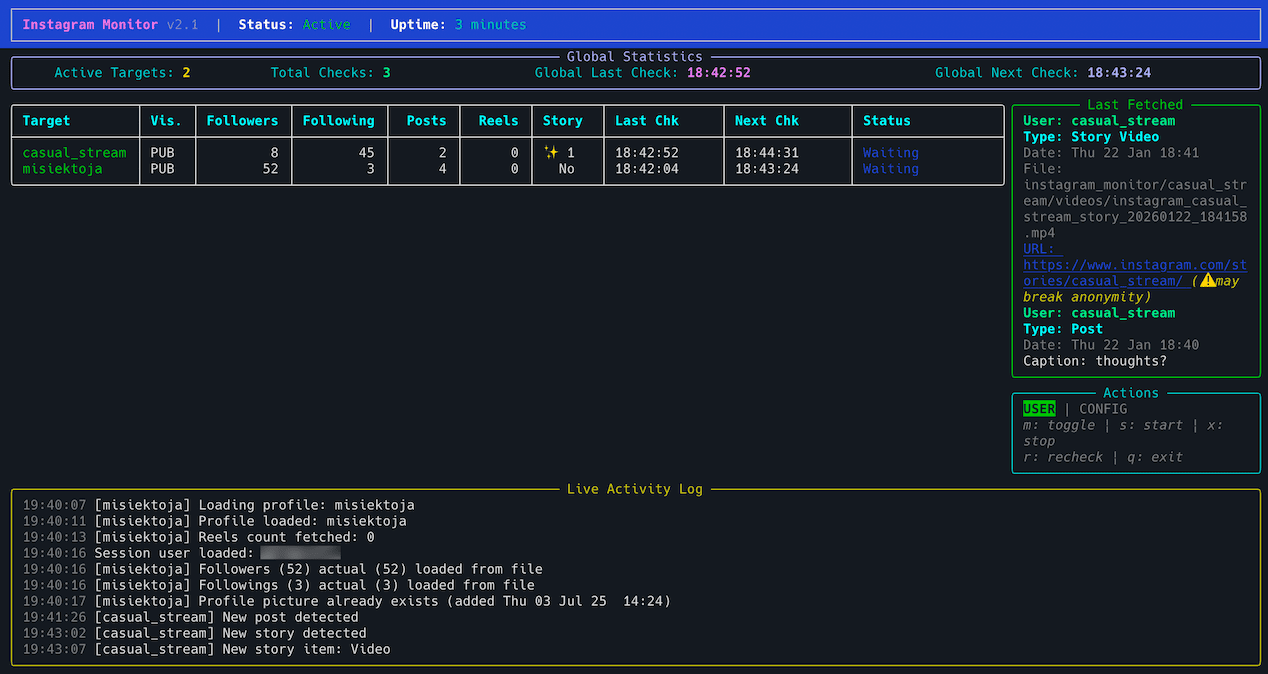
The Terminal Dashboard provides a beautiful, live-updating interface directly in your terminal. It requires the rich library.
To enable the terminal dashboard, use the --dashboard flag (or set DASHBOARD_ENABLED = True in your config).
Key Features:
- Visual Analytics: Real-time display of tracked targets with number of followers, followings, posts, visibility and story status.
- Live Activity Log: A scrolling view of the last few events.
- Interactive Toggles: Press 'm' to switch between 'User' and 'Config' views instantly.
- Remote Control: Start, stop or recheck monitoring for all targets directly from the terminal.
- Uptime & Status: Clean header showing tool version, status and total runtime.
Keyboard Shortcuts:
- 'm': Toggle dashboard view (User/Config)
- 's': Start All monitoring
- 'x': Stop All monitoring
- 'r': Recheck All targets
- 'q': Exit the tool
- 'h': Show help (lists commands in the activity log)
instagram_monitor target1 target2 --dashboard
A modern, real-time web interface running on your local machine (default: http://127.0.0.1:8000/).
Key Features:
- Full Control Panel: Add or remove monitoring targets directly from the browser.
- Visual Analytics: Real-time display of tracked targets with number of followers, followings, posts, visibility and story status.
- Live Activity Log: A scrolling view of the last few events.
- Manual Trigger: A "Recheck" button to force an immediate update for specific or all users.
- Remote Management: Start or stop monitoring for specific or all targets with a single click.
- Synchronization: Changes made in the web dashboard (like mode toggles) are reflected in the terminal instantly.
- Dynamic Configuration: Configure sessions and settings without touching the terminal or config files.
To enable the web dashboard, use the --web-dashboard flag (or set WEB_DASHBOARD_ENABLED = True in your config).
Flexible Usage:
- Standard Monitoring: Provide targets on the CLI and the dashboard acts as a live mirror and remote management interface.
- Control Panel Mode: Start the tool with only the
--web-dashboardflag (no initial targets). The script will wait for you to add users through the browser.
# Starting with initial targets
instagram_monitor target1 target2 --web-dashboard

# Starting as a pure control panel
instagram_monitor --web-dashboard
The web dashboard requires flask. If flask is missing, it will be disabled while the console output remains active.

Both the Terminal and Web dashboards support two levels of information density:
-
User Mode (
user):- Simple, minimal interface.
- Focuses on core stats and latest activity.
- Ideal for "always-on" monitoring.
-
Config Mode (
config):- Detailed view showing all internal settings.
- Displays User Agent strings, Hour Ranges, Jitter status and more.
- Useful for auditing your setup and verifying configuration.
Toggle seamlessly between modes using the 'm' key or the web dashboard toggle button.
To monitor specific user activity in session mode 1 (no session login - anonymous), just type Instagram username as a command-line argument (target_insta_user in the example below):
instagram_monitor <target_insta_user>To monitor specific user activity in session mode 2 (with session login), you also need to specify your Instagram account name (your_insta_user in the example below) via SESSION_USERNAME configuration option or -u flag:
instagram_monitor -u <your_insta_user> <target_insta_user>Since v3.0 you can also launch the Web Dashboard along with tracking:
instagram_monitor -u <your_insta_user> <target_insta_user> --web-dashboardBy default, the tool looks for a configuration file named instagram_monitor.conf in:
- current directory
- home directory (
~) - script directory
If you generated a configuration file as described in Configuration, but saved it under a different name or in a different directory, you can specify its location using the --config-file flag:
instagram_monitor <target_insta_user> --config-file /path/instagram_monitor_new.confThe tool runs until interrupted (Ctrl+C). Use tmux or screen for persistence.
You can monitor multiple Instagram users in one process by passing multiple target usernames:
instagram_monitor target_user_1 target_user_2 target_user_3Note: You can also add and remove monitoring targets directly via the Web Dashboard without restarting the tool.
To reduce the chance of triggering Instagram anti-bot mechanisms, the tool will stagger the start of each target's monitoring loop (auto-spread across your INSTA_CHECK_INTERVAL by default). You can override it with:
instagram_monitor target_user_1 target_user_2 --targets-stagger 300The tool automatically saves its output to an instagram_monitor_<suffix>.log file. It can be changed in the settings via INSTA_LOGFILE configuration option or disabled completely via DISABLE_LOGGING / -d flag.
- In single-target mode,
<suffix>is the username. - In multi-target mode,
<suffix>is the sorted list of target usernames joined with underscores.
The tool in mode 2 (session login) also saves the list of followings & followers to these files:
instagram_<username>_followings.jsoninstagram_<username>_followers.json
Thanks to this we do not need to re-fetch it every time the tool is restarted and we can also detect changes since the last usage of the tool.
When downloading lists of followers or followings, a progress bar is displayed showing real-time download progress, including statistics such as names per request, total requests, elapsed time and estimated remaining time. Progress updates are shown in the terminal only (to avoid cluttering log files), with the final completion state written to the log file for reference.
The tool also saves the user profile picture to instagram_<username>_profile_pic*.jpg files.
It also saves downloaded posts/reels images & videos to:
instagram_<username>_post/reel_YYYYmmdd_HHMMSS.jpginstagram_<username>_post/reel_YYYYmmdd_HHMMSS.mp4
And downloaded stories images & videos to:
instagram_<username>_story_YYYYmmdd_HHMMSS.jpginstagram_<username>_story_YYYYmmdd_HHMMSS.mp4
To enable email notifications for various events (such as new posts, reels and stories, changes in followings, bio updates, changes in profile picture and visibility):
- set
STATUS_NOTIFICATIONtoTrue - or use the
-sflag - or toggle it via the Settings menu in the Web Dashboard
instagram_monitor <target_insta_user> -sTo also get email notifications about changed followers:
- set
FOLLOWERS_NOTIFICATIONtoTrue - or use the
-mflag - or toggle it via the Settings menu in the Web Dashboard
instagram_monitor <target_insta_user> -mTo disable sending an email on errors (enabled by default):
- set
ERROR_NOTIFICATIONtoFalse - or use the
-eflag - or toggle it via the Settings menu in the Web Dashboard
instagram_monitor <target_insta_user> -eMake sure you defined your SMTP settings earlier (see SMTP settings).
Example email:

The tool supports webhook notifications (compatible with Discord and other webhook services) for all monitored events (posts, reels, stories, followings, followers, bio, profile visibility, profile picture changes and errors).

If you are new to Discord, follow these steps to get your Webhook URL:
- Create a Server: Click the + (Plus) icon on the left sidebar ("Add a Server") -> Create My Own -> For me and my friends.
- Create/Edit a Channel: In your new server, find the #general channel (or create a new one). Click the Edit Channel icon (⚙️ gear) next to the channel name.
- Create Webhook: Go to Integrations in the left menu -> Webhooks -> New Webhook.
- Copy URL: Click on the new webhook (often named "Spidey Bot", you can rename it) and click Copy Webhook URL.
- set
WEBHOOK_ENABLEDtoTrueandWEBHOOK_URLto your copied URL ininstagram_monitor.conf - or use an environment variable or a dotenv file for
WEBHOOK_URL - or use the
--webhook-urlflag (alternatively use the--webhookflag if URL is already in config) - or toggle it via the Settings menu in the Web Dashboard
# Enable with URL
instagram_monitor <target_insta_user> --webhook-url "https://discord.com/api/webhooks/..."

# Explicitly enable/disable if URL is in config
instagram_monitor <target_insta_user> --webhook
instagram_monitor <target_insta_user> --no-webhookYou can verify your configuration by sending a test notification:
# Verify settings from configuration file
instagram_monitor --send-test-webhook

# Verify a specific URL from command line
instagram_monitor --webhook-url "https://discord.com/api/webhooks/..." --send-test-webhookBy default, all webhook notification types (status, followers, errors) are disabled. You must explicitly enable what you want the tool to send:
- Use
--webhook-statusto toggle status notifications (new posts, reels, stories, bio, visibility, profile pic) - Use
--webhook-followersto toggle follower/following change notifications - Use
--webhook-errorsto toggle error notifications
Example with explicit control:
# Enable webhooks and specifically choose what to send
instagram_monitor <target_insta_user> --webhook-url "..." --webhook-status --webhook-followers --webhook-errors
Configuration file options (all disabled by default):
WEBHOOK_ENABLED = False
WEBHOOK_URL = "https://discord.com/api/webhooks/..."
WEBHOOK_USERNAME = "Instagram Monitor"
WEBHOOK_AVATAR_URL = ""
WEBHOOK_STATUS_NOTIFICATION = False
WEBHOOK_FOLLOWERS_NOTIFICATION = False
WEBHOOK_ERROR_NOTIFICATION = FalseWhen enabled, the tool fetches the full list of followers and followings on every check (not just when counts change) and compares usernames to detect changes. This is useful for scenarios where:
- Someone unfollows and someone else follows at the same time (count stays the same)
- You want to track exactly who followed/unfollowed even without count changes
- You need comprehensive monitoring of all follower/following activity
To enable follower churn detection:
- set
FOLLOWERS_CHURN_DETECTIONtoTrue - or use the
--followers-churnflag - or toggle it via the Settings menu in the Web Dashboard
Note: This feature is automatically disabled if SKIP_FOLLOW_CHANGES is active, as detailed tracking is not possible when follow-related reporting is suppressed. It also requires Session Mode 2.
instagram_monitor <target_insta_user> --followers-churnNote: This feature requires Session Mode 2 (session login) to access the Instagram API and it will increase API calls since it fetches the full follower/following lists every check interval, so the risk of account suspension is higher.
If you want to track followers/followings counts in the dashboards, but don't want to get any notifications or logs when they change, you can enable the "Skip Follow Changes" mode.
When enabled:
- Notifications: Email and Webhook alerts for follower/following changes are suppressed.
- Reporting: Console prints and activity logs for these changes are disabled.
- CSV Export: No "Followers Count" or "Followings Count" entries are written to the CSV file.
- Performance: High-overhead downloading of full lists is skipped, saving bandwidth and reducing API call volume.
To enable skipping follow changes:
- set
SKIP_FOLLOW_CHANGEStoTruein your config - or use the
--skip-follow-changesflag - or toggle it via the Settings menu in the Web Dashboard
instagram_monitor <target_insta_user> --skip-follow-changesIf you want to save all Instagram user's activities and profile changes to a CSV file, set CSV_FILE or use -b flag:
instagram_monitor <target_insta_user> -b instagram_username.csvThe file will be automatically created if it does not exist.
The tool uses the following logic for CSV path resolution:
- Absolute Path:
- Single-target mode: The file is saved exactly where specified.
- Multi-target mode: The absolute path is used as a base; separate files are created for each user (e.g.,
/path/file_user1.csv). Isolation is preserved.
- Relative Path +
OUTPUT_DIR: If you provide a relative path and haveOUTPUT_DIRconfigured, the file is saved in thecsvs/subdirectory:- Single-target mode:
OUTPUT_DIR/csvs/<filename>(uses basename of your input) - Multi-target mode:
OUTPUT_DIR/<username>/csvs/<filename>(uses basename of your input)
- Single-target mode:
- Relative Path + no
OUTPUT_DIR:- Single-target mode: Saved as specified in the current working directory.
- Multi-target mode: One file per user is created in the current working directory using a suffix:
<CSV_FILE_basename>_<username>.csv.
By default, the tool saves all generated files (JSON, images, videos, logs) in the current working directory.
You can specify a custom root directory for all output files using the -o / --output-dir flag or OUTPUT_DIR configuration option:
instagram_monitor <target_insta_user> -o /path/to/downloadsThe tool will organize files into subdirectories:
-
Output structure: The layout depends on whether you monitor one or multiple users:
-
Single-target mode: All files are organized into subdirectories directly under
OUTPUT_DIR:OUTPUT_DIR/images/OUTPUT_DIR/videos/OUTPUT_DIR/json/OUTPUT_DIR/logs/OUTPUT_DIR/csvs/
-
Multi-target mode: Each user gets their own isolated subdirectory:
OUTPUT_DIR/<username>/images/OUTPUT_DIR/<username>/videos/OUTPUT_DIR/<username>/json/OUTPUT_DIR/<username>/logs/OUTPUT_DIR/<username>/csvs/
-
Common messages (like the summary screen or global errors) are automatically broadcasted to all active log files.
This helps keep your files organized, especially when monitoring multiple users.
The tool can detect when a monitored user changes their profile picture. Notifications appear in the console and (if the -s flag is enabled) via email.
This feature is enabled by default. To disable it, either:
- set the
DETECT_CHANGED_PROFILE_PICtoFalse - or use the
-kflag - or toggle it via the Settings menu in the Web Dashboard
Since Instagram periodically changes the profile picture URL even when the image is the same, the tool performs a binary comparison of JPEG files to detect actual changes.
On the first run, it saves the current profile picture to instagram_<username>_profile_pic.jpg
On each subsequent check a new image is fetched and it is compared byte-for-byte with the saved image.
If a change is detected, the old picture is moved to instagram_<username>_profile_pic_old.jpg and the new one is saved to:
instagram_<username>_profile_pic.jpg(current)instagram_<username>_profile_pic_YYmmdd_HHMM.jpg(for history)
The tool also has built-in detection of empty profile pictures. Instagram does not indicate an empty user's profile image in their API; that's why the tool detects it by using an empty profile image template (which appears to be identical on a binary level for all users).
To enable this:
- download the instagram_profile_pic_empty.jpg file
- place it in the directory where you run the tool. Note: If installed via
pip, this file is already bundled; however, any local file in your working directory will take priority over the bundled default.

Without this file, the tool will treat an empty profile picture as a regular image. For example, if a user removes their profile picture, it would be treated as a change rather than a removal.
If you have imgcat installed, you can use the feature of displaying profile pictures and stories/reels/posts images right in your terminal.
To do this, set the path to your imgcat binary in the IMGCAT_PATH configuration option.
If you specify only the binary name, it will be auto-searched in your PATH.
Set it to empty to disable this feature.
If you want to customize polling interval, use -c flag (or INSTA_CHECK_INTERVAL configuration option):
instagram_monitor <target_insta_user> -c 3600Note: You can also adjust check intervals and randomization timers live via the Settings menu in the Web Dashboard.
It is generally not recommended to use values lower than 1 hour as it will be quickly picked up by Instagram automated tool detection mechanisms.
In order to make the tool's behavior less suspicious for Instagram, by default the polling interval is randomly picked from the range:
[ INSTA_CHECK_INTERVAL (-c) - RANDOM_SLEEP_DIFF_LOW (-i) ]
                         ⇄
[ INSTA_CHECK_INTERVAL (-c) + RANDOM_SLEEP_DIFF_HIGH (-j) ]
This means each check will happen after a random delay centered around INSTA_CHECK_INTERVAL with some variation defined by RANDOM_SLEEP_DIFF_LOW and RANDOM_SLEEP_DIFF_HIGH.
So having the check interval set to 1 hour (-c 3600), RANDOM_SLEEP_DIFF_LOW set to default 15 mins (-i 900) and RANDOM_SLEEP_DIFF_HIGH set to default 3 mins (-j 180) means that the check interval will be with every iteration picked from the range of 45 mins to 1 hour and 3 mins.
That's why the check interval information is printed in the console and email notifications as it is essentially a random number.
On top of that you can also define that fetching updates should be done only in specific hour ranges by setting CHECK_POSTS_IN_HOURS_RANGE to True and then defining proper values for MIN/MAX_H1/H2 configuration options (see Use Hour-Range Checking for more information).
The tool has several signal handlers implemented which allow to change behavior of the tool without a need to restart it with new configuration options / flags.
List of supported signals:
| Signal | Description |
|---|---|
| USR1 | Toggle email notifications for new posts, reels & stories, changed followings, bio, profile picture, visibility (-s) |
| USR2 | Toggle email notifications for new followers (-m) |
| TRAP | Increase the user activity check interval (by 5 mins) |
| ABRT | Decrease the user activity check interval (by 5 mins) |
| HUP | Reload secrets from .env file |
Send signals with kill or pkill, e.g.:
pkill -USR1 -f "instagram_monitor <target_insta_user>"As Windows supports limited number of signals, this functionality is available only on Linux/Unix/macOS.
The tool has native color output support for terminal since v3.0 (see COLORED_OUTPUT and COLOR_THEME config options), but you can also use GRC to color logs.
Add to your GRC config (~/.grc/grc.conf):
# monitoring log file
.*_monitor.*\.log
conf.monitor_logs
Now copy the conf.monitor_logs to your ~/.grc/ and log files should be nicely colored when using grc tool.
Example:
grc tail -F -n 100 instagram_monitor_<username>.logAs mentioned earlier it is highly recommended to use a dedicated Instagram account when using this tool in session login mode. While the risk of account suspension is generally low (in practice, accounts often stay active long-term), Instagram may still flag it as an automated tool. This can lead to challenges presented by Instagram that must be dismissed manually.
To minimize any chance of detection, make sure to follow the best practices outlined below.
Use your Firefox web browser to log in, ensuring the session looks natural and consistent to Instagram. Follow instructions described here
Always pass the exact web browser user agent string from your Firefox web browser by using USER_AGENT configuration option or the --user-agent flag. This helps maintain device consistency during automated actions. Follow instructions described here
Since v1.7, the tool includes a new experimental Be Human mode that makes it behave more like a real user to reduce bot detection.
It is disabled by default, but you can enable it via BE_HUMAN configuration option, --be-human flag or by toggling it via the Settings menu in the Web Dashboard.
It is used only with session login (session mode 2).
After each check cycle, the tool will randomly do one or more of these harmless actions:
- View your explore feed: pulls a single post from Instagram's explore feed
- Open your own profile, as if tapping your avatar
- Browse a hashtag: fetches one post from a random tag listed in
MY_HASHTAGSconfiguration option - Look at a profile of someone you follow
By default it does around 5 of these actions spread over 24 hours, but you can adjust it via DAILY_HUMAN_HITS option.
If you are interested in your human actions set BE_HUMAN_VERBOSE option to True.
Since v1.7, the tool allows to force every HTTP call made by Instaloader to go through a built-in jitter/back-off layer to look more human.
This adds random delay (0.8-3 s) before each request and automatically retries on Instagram's 429 "too many requests" or checkpoint challenges, with exponential back-off (60 s → 120 s → 240 s) and a little extra jitter.
This significantly reduces detection risk, but also makes the tool slower.
You can enable this feature via ENABLE_JITTER configuration option or --enable-jitter flag.
If you want to see verbose output for HTTP jitter/back-off wrappers set JITTER_VERBOSE option to True.
Avoid setting the polling interval (INSTA_CHECK_INTERVAL option or -c flag) too aggressively. Use a minimum of 1 hour - longer is better. For example, I set it to 12 hours on test accounts, resulting in only 2 checks per day.
Also consider to randomize the check interval, as explained here.
Important: When monitoring multiple users in a single process, the effective request rate is multiplied by the number of targets. For example, monitoring 5 users with a 1-hour interval means 5 requests per hour. To maintain the same per-account request rate, increase the check interval proportionally. If you normally use 1 hour for a single user, consider using 5 hours (or more) when monitoring 5 users. The tool automatically staggers requests between targets, but the overall request frequency should still be adjusted based on the total number of monitored users.
The tool supports limiting fetching updates to specific hours of the day, which helps reduce detection by avoiding requests during times when automated activity might be more suspicious.
When hour-range checking is enabled, the tool will only fetch updates (posts, reels, stories, profile changes, followers/followings) during the configured time windows. Outside these hours, the tool will skip fetching updates but will continue running and wait for the next allowed time window.
To enable this feature, set CHECK_POSTS_IN_HOURS_RANGE to True and configure the allowed hour ranges using:
MIN_H1andMAX_H1- first range of hours (default: 0-4, i.e., midnight to 4:59 AM)MIN_H2andMAX_H2- second range of hours (default: 11-23, i.e., 11:00 AM to 11:59 PM / 23:59)
You can define up to two non-overlapping or overlapping ranges. To disable any range, set both MIN and MAX to 0.
Note: You can also enable this feature and configure the allowed hour ranges live via the Settings menu in the Web Dashboard.
For example, to only allow checks during business hours (9 AM to 5 PM / 17:00), you could set:
MIN_H1 = 9MAX_H1 = 17MIN_H2 = 0MAX_H2 = 0
Hours are specified in 24-hour format (0-23) and are evaluated in your configured time zone (see Time Zone).
If you want to see verbose output about when updates are being fetched or skipped, set HOURS_VERBOSE to True. This is useful for debugging and understanding when the tool is active.
This feature works particularly well when combined with reasonable polling intervals, as it ensures that even if your check interval triggers, requests will only be made during the configured time windows, making your activity pattern look more natural.
It is recommended to limit the number of users monitored by a single account, especially if they post frequent updates. When using multi-user monitoring (monitoring multiple users in one process), keep in mind that the total request volume increases with each additional target. In some cases, it may be best to create a separate account for additional users and even run it from a different IP address to reduce the risk of detection.
Frequent updates to certain data types, such as new stories or posts/reels, are more likely to flag the account as an automated tool compared to profile changes or lists of followers/followings.
If certain data isn't essential for your use case, consider disabling its retrieval. The tool provides fine-grained control, for example you can skip fetching stories details (-r), posts/reels details (-w), the list of followings (-g flag) and followers (-f).
Note: All of these fine-grained tracking options can also be toggled live via the Settings menu in the Web Dashboard.
Activate 2FA on the account used for monitoring. It adds credibility to your account and reduces the likelihood of security flags.
Refrain from logging in via VPNs, especially with IPs in different regions. Sudden location changes can trigger Instagram's security systems.
If you have created a new account for monitoring and you are using Session Login Using Firefox, make sure to behave like a regular user for several days. New accounts are more closely monitored by Instagram's bot detection systems. Watch content, post stories or reels and leave comments - this helps establish a natural activity pattern.
Once you start using the tool, try to blend its actions with normal usage. However, avoid overlapping browser activity with tool activity, as simultaneous actions can trigger suspicious behavior flags.
In case of issues, run the tool with the --debug flag. It shows full HTTP traffic and internal script logic. Create a new issue in Github if you cannot fix it yourself.
- Default Mode: Silent and clean. Only logs changes (new posts, bio updates, etc.) and critical errors. Best for long-term production use.
- Verbose Mode (
--verbose): Recommended for most users. Shows when the next check is scheduled and confirms that the loop is running correctly. - Debug Mode (
--debug): For developers or fixing issues. Shows full HTTP traffic, internal script logic
Note: Both Verbose and Debug modes can be toggled live via the Settings menu in the Web Dashboard.
See RELEASE_NOTES.md for details.
Licensed under GPLv3. See LICENSE.