Getting Started
This guide walks through the initial Acmebot deployment and the minimum configuration required to start issuing certificates.
Choose one of the supported deployment methods.
Use this option when you want the fastest manual deployment path.
| Azure (Public) | Azure China | Azure Government |
|---|---|---|
Use this option when you already manage Azure resources as code with Terraform.
Published module:
Terraform Registry: shibayan/keyvault-acmebot/azurerm
A first-party Bicep module is not available yet. Track the current status here:
Publish the Bicep module in the Container Registry
Acmebot can work with multiple ACME certificate authorities. Configure the CA endpoint you want to use.
-
Let's Encrypt
https://acme-v02.api.letsencrypt.org/directory
-
Buypass Go SSL
https://api.buypass.com/acme/directory
-
ZeroSSL
https://acme.zerossl.com/v2/DV90/- Requires EAB credentials
-
Google Trust Services
https://dv.acme-v02.api.pki.goog/directory- Requires EAB credentials
-
SSL.com
- RSA:
https://acme.ssl.com/sslcom-dv-rsa - ECDSA:
https://acme.ssl.com/sslcom-dv-ecc - Requires EAB credentials
- RSA:
-
Entrust
- Requires EAB credentials
Note
If your selected CA requires EAB, configure it before registering the ACME account.
Update the Function App settings after deployment.
Note
Use __ as the hierarchical delimiter in Function App setting names so the same keys work on Flex Consumption and other Linux-based plans.
| Setting | Required | Description |
|---|---|---|
Acmebot__VaultBaseUrl |
When using an existing Key Vault | Base URL of the Key Vault to store and manage certificates |
Acmebot__Webhook |
No | Webhook destination for success and failure notifications |
Acmebot__PreferredChain |
No | Preferred certificate chain, when the CA offers multiple chains |
Acmebot__RenewBeforeExpiry |
No | Number of days before expiry when renewal starts. Default: 30
|
Acmebot__UseSystemNameServer |
No | Set to true to use the App Service resolver instead of an external DNS resolver |
Acmebot__DefaultSigner |
No | Default ACME signing algorithm. Primarily useful for Entrust |
Acmebot__ManagedIdentityClientId |
No | Client ID for a user-assigned managed identity |
Acmebot also creates and maintains the following settings automatically:
-
Acmebot__Endpoint- ACME directory endpoint used for issuance
-
Acmebot__Contacts- Contact email address used during ACME account registration
Where possible, store provider secrets by using Key Vault references instead of plain-text Function App settings.
Acmebot uses DNS-01 validation, so you must configure one supported DNS provider.
Supported providers:
- Amazon Route 53
- Azure DNS
- Cloudflare
- DNS Made Easy
- Gandi LiveDNS
- GoDaddy
- Google Cloud DNS
- TransIP DNS
- Custom DNS provider
See the provider-specific settings here:
Enable authentication on the deployed Function App before using the dashboard or protected API endpoints.
Microsoft Entra ID is the recommended identity provider for interactive access and bearer-token based API access.
- Open the Function App in Azure Portal.
- Open the
Authenticationmenu. - Add
Microsoftas the identity provider. - Keep the default generated settings unless your environment requires a custom configuration.
- Set the application to
Require authentication.


Note
In sovereign clouds, the Express experience may not be available. Use the advanced setup instead:
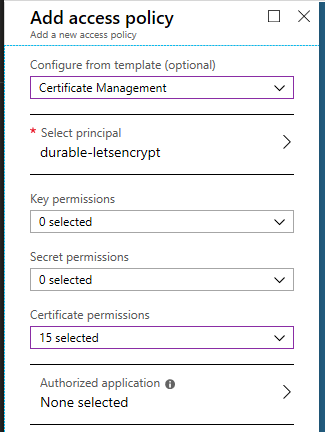
If you are using an existing Key Vault, grant the deployed application permission to manage certificates in that vault. Use either an access policy or the equivalent RBAC role, depending on the vault permission model.
Browse to https://YOUR-FUNCTIONS.azurewebsites.net/dashboard to view and manage certificates.
From the dashboard you can:
- Issue a new certificate
- Renew an existing certificate
- Revoke a certificate
- Review certificates currently managed by Acmebot

The dashboard feature is currently in preview. Feedback is welcome in issue #341.
Before issuing the first certificate, confirm the following:
- You can sign in to the dashboard successfully.
- The target Key Vault is reachable and writable by the deployed application.
- DNS provider settings are configured for the zone you want to validate.