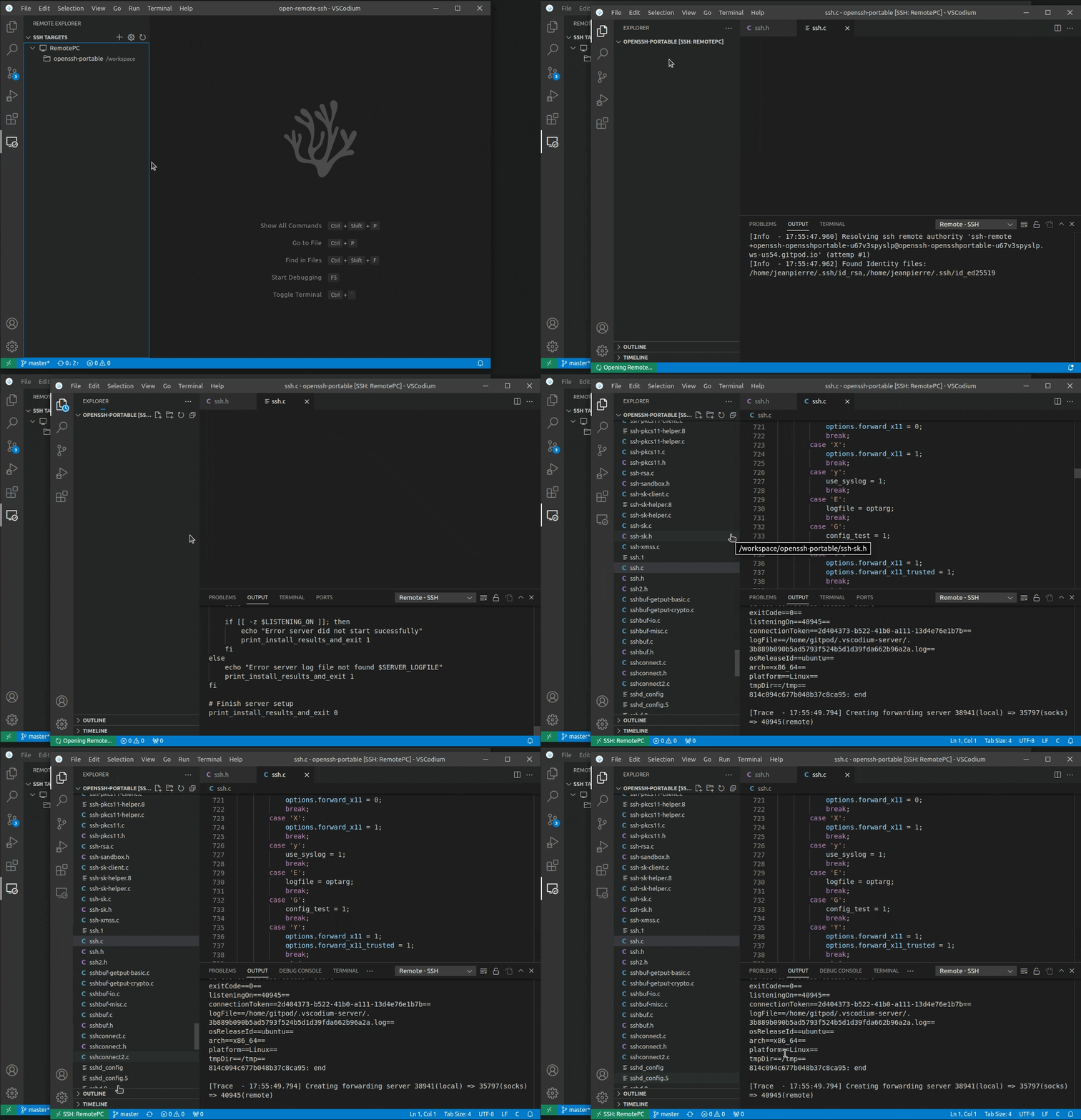
You can connect to a running SSH server on the following platforms.
Supported:
- x86_64 Debian 8+, Ubuntu 16.04+, CentOS / RHEL 7+ Linux.
- ARMv7l (AArch32) Raspbian Stretch/9+ (32-bit).
- ARMv8l (AArch64) Ubuntu 18.04+ (64-bit).
- macOS 10.14+ (Mojave)
- Windows 10+
- FreeBSD 13 (Requires manual remote-extension-host installation)
- DragonFlyBSD (Requires manual remote-extension-host installation)
- AIX 7.1+ (Requires manual setup - see AIX Support section below)
Alpine linux
When running on alpine linux, the packages libstdc++ and bash are necessary and can be installed via
running
sudo apk add bash libstdc++AIX
Requirements for AIX hosts:
- AIX 7.1 or later
- Node.js 16+ installed on the remote AIX system
- GNU bash (AIX ksh may cause issues)
- Sufficient permissions to write to the user's home directory
Known Limitations:
- Some VS Code extensions that rely on native binaries may not function (like watcher)
Setup Instructions:
- Install Node.js on AIX:
# Download and install Node.js for AIX
# Visit https://nodejs.org/en/download/ for AIX packages
# Or use package managers like yum if available
- Ensure bash is available:
# Check if bash is installed
which bash

# If not available, install GNU bash
# This may require installing from AIX Toolbox or building from source
Installation Steps
- Open VSCodium. Turn on Updates and get the latest version.
- Go to Extensions view.
- Search for
AIX Remote - SSHortonykuttai.aix-remote-ssh - Install the extension
- Install shell command in PATH: Open Command Palette and run Shell Command: Install
codiumcommand inPATH. Close VSCodium. - Always start VSCodium with the following flags to enable proposed API on your Host terminal:
codium --enable-proposed-api tonykuttai.aix-remote-ssh
Always start VSCodium with the following flags to enable proposed API on your Host terminal:
codium --enable-proposed-api tonykuttai.aix-remote-ssh
OpenSSH supports using a configuration file to store all your different SSH connections. To use an SSH config file, run the Remote-SSH: Open SSH Configuration File... command from VScodium command palette.
Complete instructions for installing and using the AIX-compatible Remote SSH extension.
- VSCodium installed
- SSH client available (
sshcommand) - Network access to your AIX server
- SSH server running (
sshd) - Node.js 16+ installed at
/opt/nodejs/bin/node - User account with appropriate permissions
-
Generate SSH key (if you don't have one):
ssh-keygen -t ed25519 -C "your_email@example.com" -
Copy public key to AIX server:
ssh-copy-id username@your-aix-server.com
-
Test SSH connection:
ssh username@your-aix-server.com
Create or edit ~/.ssh/config:
Host aix-server
    HostName your-aix-server.com
    User your-username
    IdentityFile ~/.ssh/id_ed25519
    ServerAliveInterval 60
    TCPKeepAlive yes
- Open Command Palette (Ctrl+Shift+P or Cmd+Shift+P)
- Type: "Remote-SSH: Connect to Host..."
- Select the command from the dropdown
- Enter your connection string:
Or if you configured SSH config:
username@your-aix-server.comaix-server - Select platform when prompted: Choose "Linux" (AIX will be detected automatically)
- Enter password or use SSH key authentication
- Extension will detect AIX and start server installation
- VSCodium server will be downloaded and installed automatically
- AIX compatibility patches will be applied
- Wait for installation to complete (may take 2-5 minutes on first connection)
- Connection established - you'll see "SSH: hostname" in the bottom-left corner
- Bottom-left corner should show:
SSH: your-aix-server - Green connection indicator in status bar
- Terminal should work (Terminal → New Terminal)
- Open a folder on the AIX server (File → Open Folder)
- Create a test file and edit it
- Open integrated terminal (Ctrl+
or Cmd+) - Run basic commands:
pwd
ls -la
uname -a
- C/C++ Extension Pack (for LLVM/C++ development)
- GitLens (for Git integration)
- clangd (for code navigation, you need to install clangd server for AIX seperately)
- Local VSCodium logs: Help → Toggle Developer Tools → Console
- Remote server logs:
~/.vscodium-server/.*.log - SSH logs:
ssh -v username@hostname
# Server installation logs
~/.vscodium-server/.*.log

# Extension host logs
~/.vscodium-server/data/logs/

# Terminal output
# Available in VSCodium: View → Output → Remote-SSHWhen reporting issues, include:
- AIX version:
oslevel -s - Node.js version:
/opt/nodejs/bin/node --version - VSCodium version: Help → About
- Extension version: Extensions panel
- Error logs: From locations listed above
A: The official Remote-SSH extension doesn't support AIX. This extension includes AIX-specific patches and pre-built server components.
A: This extension is designed for VSCodium. For VS Code, you may need to modify the installation process.
A: While designed for AIX, it should work with other UNIX systems that the official extension doesn't support.
A: Download the new .vsix file and install it using the same process. VSCodium will update the existing installation.
A: You can modify the server installation script or create a symlink:
sudo ln -s /your/nodejs/path/node /opt/nodejs/bin/nodeThat's it! You should now have a fully functional Remote SSH connection to your AIX server through VSCodium.
For the latest updates and issues, visit: https://github.com/tonykuttai/open-remote-ssh
This extension is based on jeanp413/open-remote-ssh and adds experimental AIX remote server support via tonykuttai/vscodium-aix-server.